
Adding New Team Members and Permissions
The guide below will provide a step-by-step guide to adding new members and member permissions.
Add a New Team Member
- Navigate to Work Space (https://portal.rovahq.com/workspace)
- Under team, please click on
Add User+
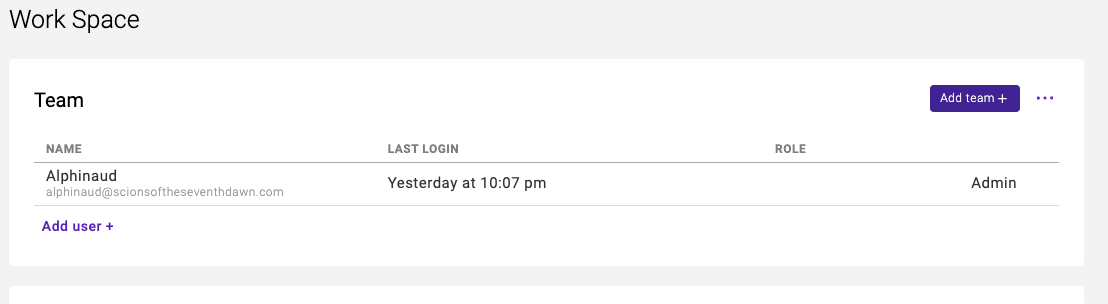
3. Provide the email of your team member and the permissions.
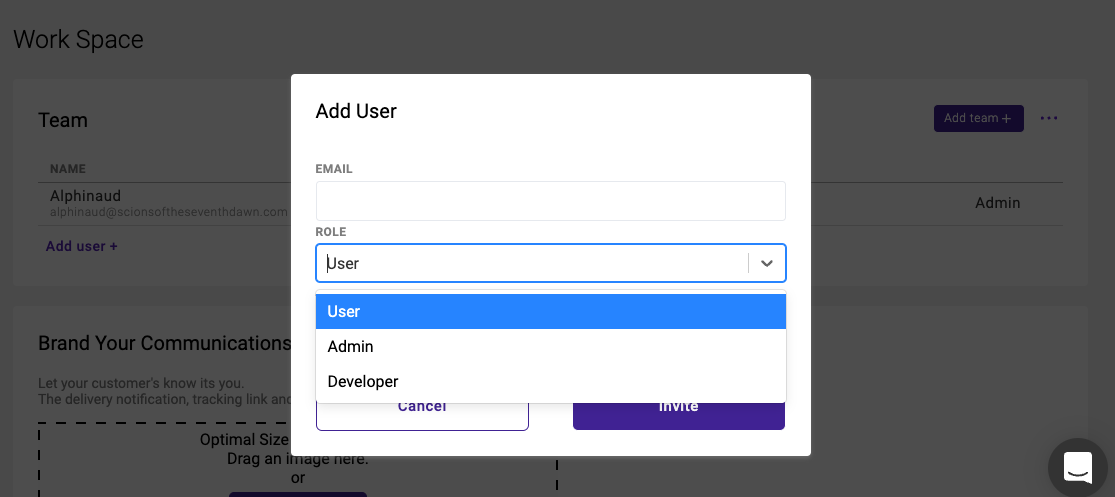
4. The platform will programmatically send out an email to provide them with login instructions.
Member Permissions
Permission of each member can be adjusted at any time. To view the available permissions click on the 3 dots next to Add team +
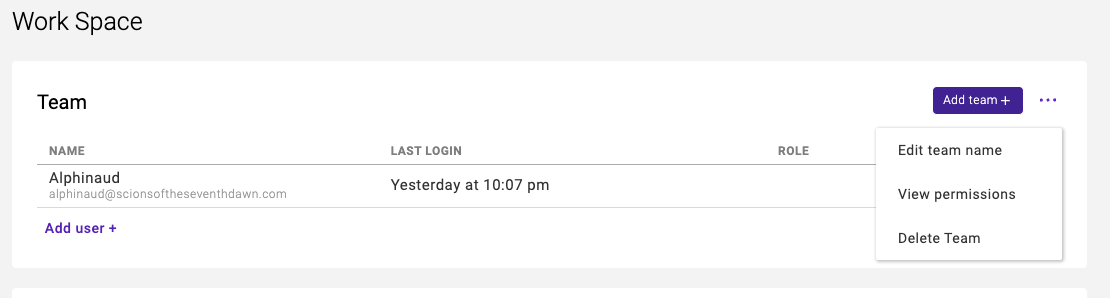
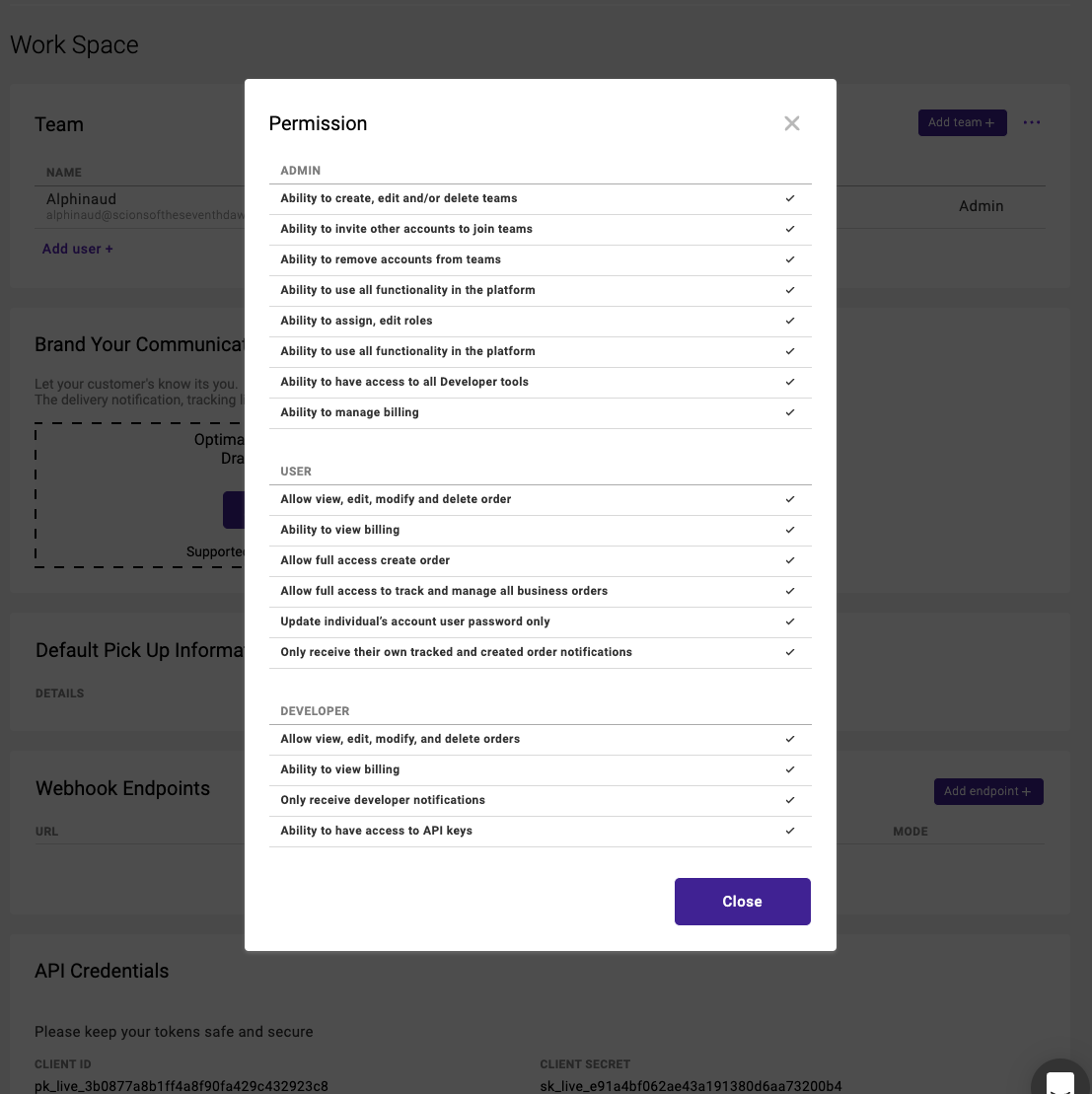
Click on View Permission, the permission modal will provide a breakdown.
Have a question about this article?Contact our support team